
Keeping your company’s careers page up to date should not require submitting tickets to developers or manually copying and pasting job descriptions across tools.
With the Lever to Framer Sync plugin, you can establish an automated bridge between Lever's applicant tracking system and Framer CMS in just 5 straightforward steps. Here is the complete visual guide.
Prerequisites
Before launching the plugin, make sure you have the following:
- A Framer Project: With a CMS collection created (e.g., named "Jobs", "Careers", or "Open Positions").
- Your Lever Company Slug: If your public Lever job board is at
jobs.lever.co/acme-corp, your slug is simplyacme-corp. No Lever API keys or login credentials are needed! - A Polar License Key: You can grab your lifetime license key for $29 on Polar.
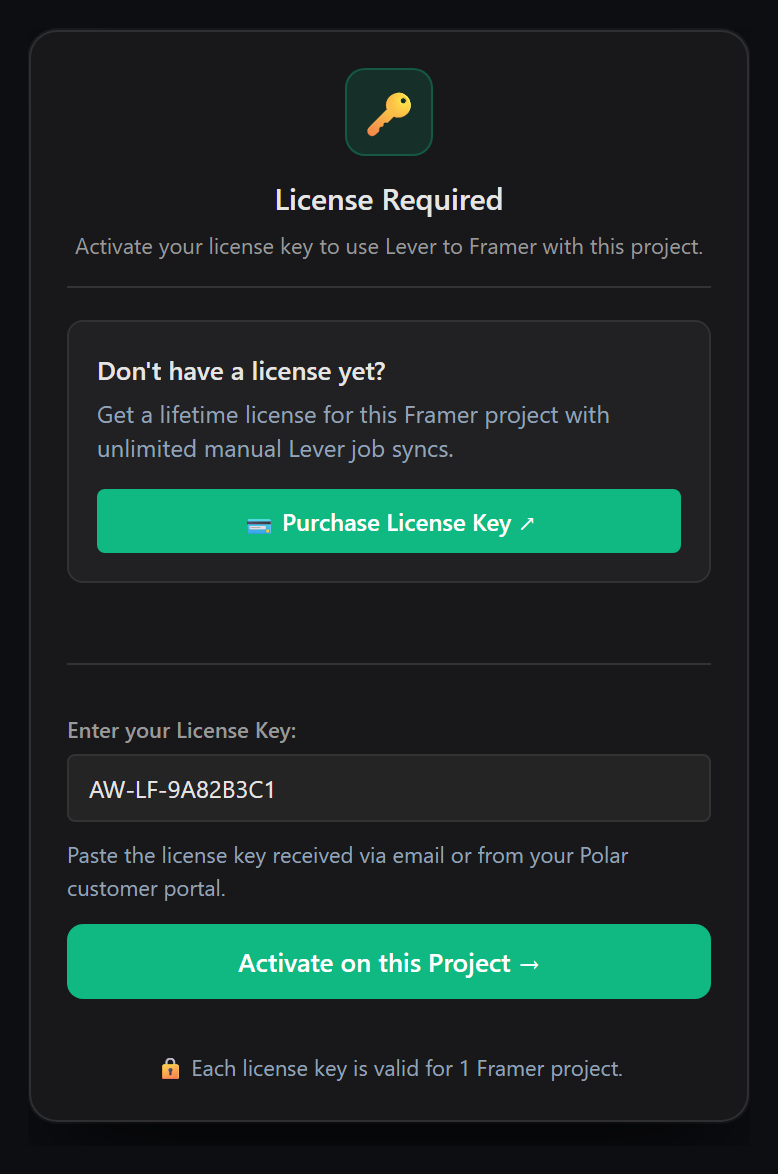
Step 1: Open the Plugin & Activate Your License
Inside Framer, open your project and launch the Lever to Framer Sync plugin from the Plugins menu. On first launch, the plugin prompts you for your license key.
Paste your key (in XXXX-XXXX-XXXX-XXXX format) and click Activate License. Your key is verified via encrypted HTTPS and saved to your Framer project's secure plugin storage, unlocking unlimited syncs forever.
Step 2: Connect Your Lever Public Job Board
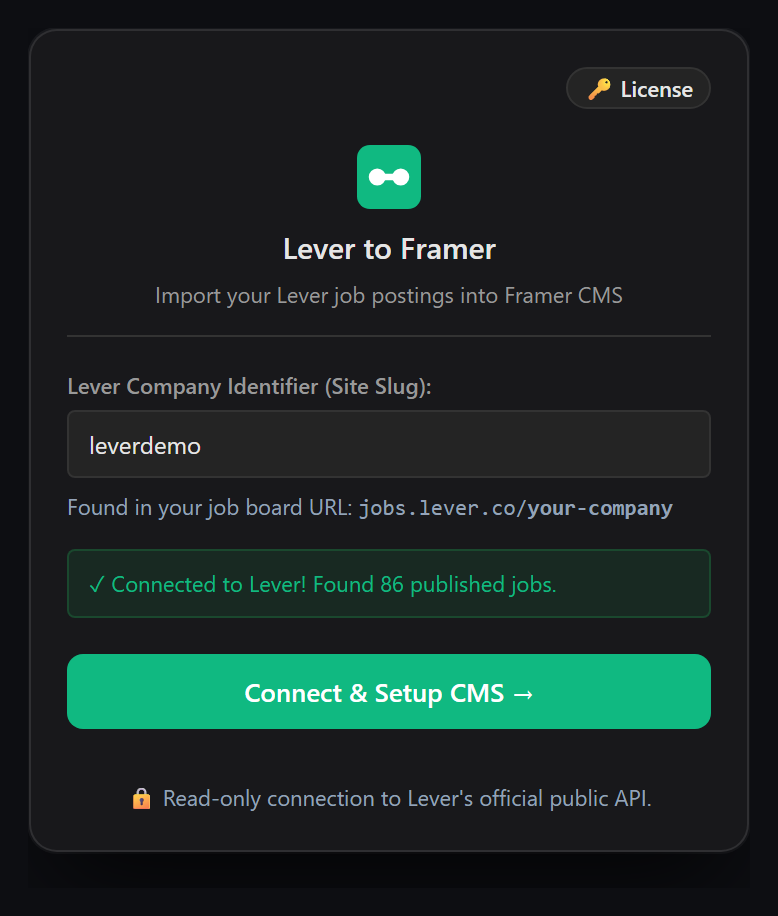
Once activated, the plugin displays the connection screen. Here you configure where the plugin should retrieve your job postings:
- Lever Company Slug: Enter your company name as it appears in your Lever careers URL (e.g.,
spotify,netflix, or your organization's custom slug). - API Region Endpoint: Select US (api.lever.co) for standard accounts or EU (api.eu.lever.co) if your company is hosted on Lever's European data cluster for GDPR compliance.
Click Connect & Fetch Postings. The plugin connects to Lever directly from your browser session in less than 2 seconds.
Step 3: Visual Field Mapping
Next, the plugin displays your available Framer CMS collections and allows you to map Lever's structured job attributes to your Framer CMS fields using simple visual dropdowns.
Select your target CMS collection (e.g. Careers), then match the fields:
- Title: Map to Lever
text(Job Title). - Slug: Map to Lever
idor a sanitized version of the title for clean URLs. - Location: Map to Lever
categories.location. - Workplace Type: Map to Lever
workplaceType(Remote, Hybrid, or On-site). - Department / Team: Map to Lever
categories.departmentorcategories.team. - Job Description: Map to Lever
descriptionPlainordescription(HTML formatted rich text). - Application Link: Map to Lever
applyUrlso candidate buttons lead straight to your custom application form.
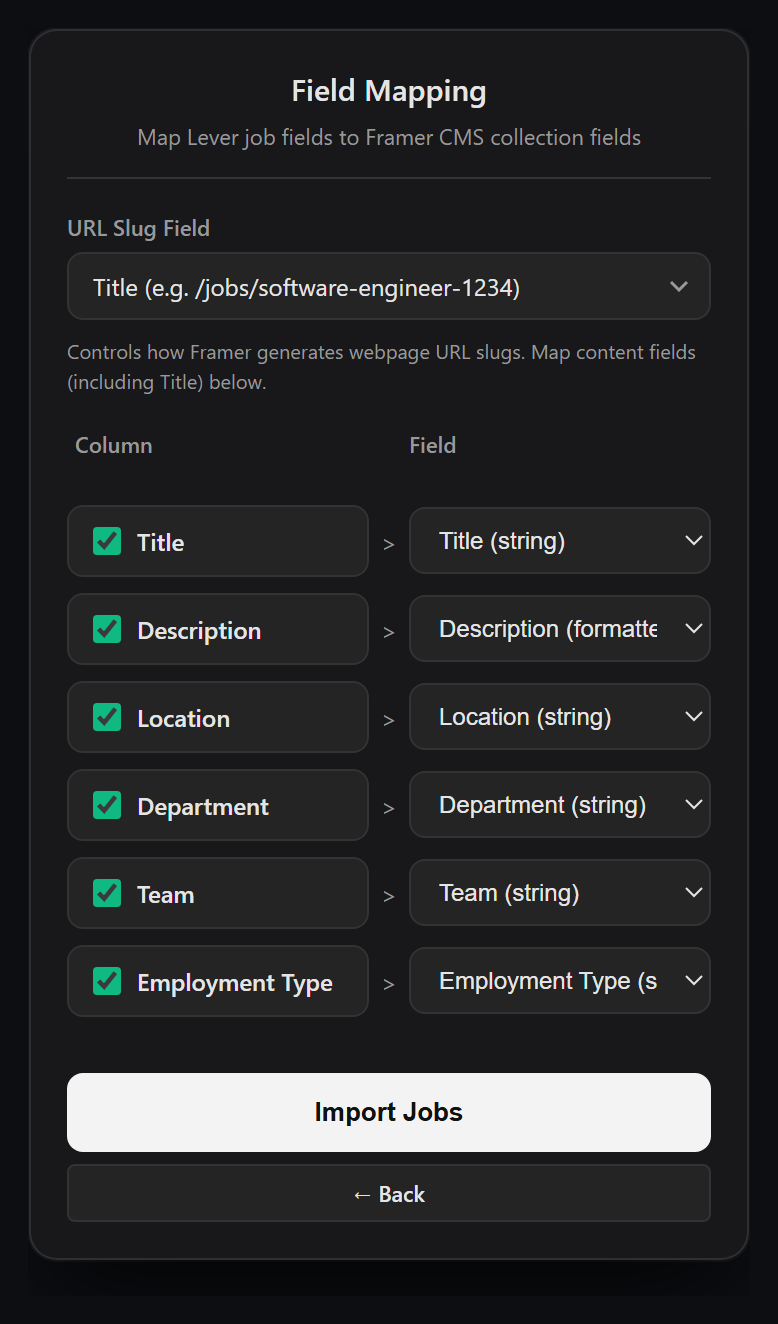
You only need to configure field mapping once! The plugin securely remembers your mapping configuration for future syncs.
Step 4: Inspect the Diff Preview & Smart Cleanup
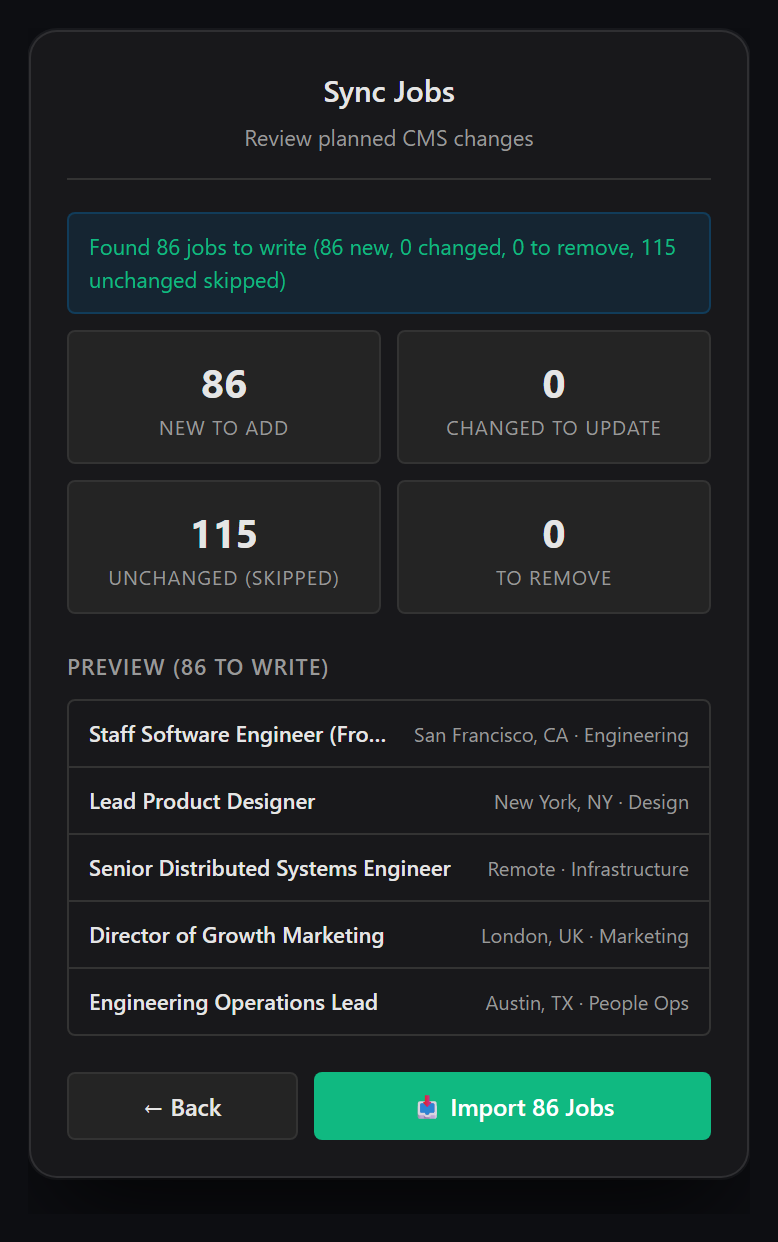
Before any changes are written to Framer, the plugin's built-in Diff Engine compares your live Lever postings with your existing Framer CMS items.
You are presented with a clear visual audit:
- ● Added Postings: Brand-new listings opened in Lever since your last sync.
- ● Updated Postings: Existing listings where salaries, titles, or descriptions were edited.
- ● Unchanged Postings: Existing listings that haven't changed (skipped for performance).
- ● Removed Postings: Roles closed or archived in Lever. The plugin safely deletes them so you never host outdated ghost jobs!
Step 5: Apply Changes & Celebrate
Review the summary and click Apply Changes. In seconds, the plugin commits all changes directly to Framer CMS via the official Framer SDK.
A confirmation modal displays the number of items created, updated, and removed, along with the total duration.
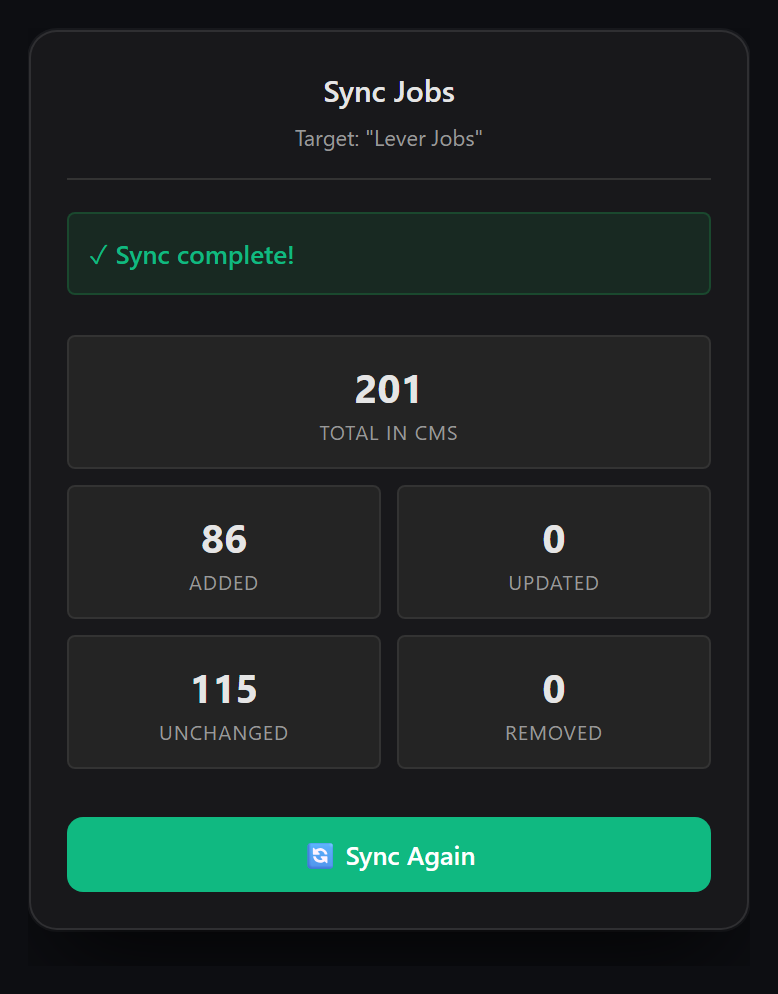
Close the plugin, and your Framer CMS collection is fully populated! Any CMS collection lists, detail pages, search filters, and department tags on your canvas will immediately render your live Lever jobs.
Pro Tips for High-Converting Framer Careers Pages
1. Rich Text Formatting for Job Descriptions
Lever provides both plain text (descriptionPlain) and styled HTML (description). When creating your Framer CMS collection, use a Formatted Text field for your job description. The plugin preserves headings, bold text, and bulleted lists so your job requirements look crisp and readable.
2. Google for Jobs SEO Schema
Because your job postings now reside as native Framer CMS records, you can add Google JobPosting JSON-LD structured data into your Framer Page Settings. This enables Google Search to display your jobs directly in search cards!
3. Fast Weekly Sync Routine
Whenever your recruitment team adds or fills roles, simply open Framer, click Lever to Framer Sync, inspect the diff, and click Apply. What used to take hours of manual copy-pasting now takes under 15 seconds.